A few months ago, I needed to add WhatsApp chat to my WordPress site. It sounded simple at first, but once I started looking, things got messy quickly. There were dozens of plugins that looked similar, vague feature lists, and very little clarity about which ones actually worked well in real situations.
That’s a problem, because the wrong setup can slow down responses, frustrate visitors, or create more work than it saves.
WhatsApp isn’t just another contact method. For many visitors, it’s the fastest and most comfortable way to reach a business. When WhatsApp is set up properly on your site, it can lead to more conversations, quicker responses, and stronger customer relationships.
That’s why I tested and compared the most popular WhatsApp plugins for WordPress. In this roundup, I’ll walk you through the options that are actually worth using and explain which ones work best for different needs.
Note: It is important to know that there are two main types of WhatsApp plugins. Click-to-Chat buttons simply open the WhatsApp app on your visitor’s phone so they can message you. Automated Messaging tools (using the API) allow you to send automated order notifications or create chatbots.
Quick Overview: Best WhatsApp Plugins for WordPress
Before I dive into the full reviews, here’s a quick look at the best WhatsApp plugins for WordPress:
| # | Plugin | Starting Price | Free Plan? | Best For |
|---|---|---|---|---|
| 🥇 | WPChat | $49/year | ✅ | Multi-platform chat with AI-powered support |
| 🥈 | PushEngage | $91/year | ✅ | WhatsApp order updates, cart recovery, and a free click-to-chat widget |
| 🥉 | Uncanny Automator | $149/year | ✅ | Building complex WhatsApp automation workflows |
| 4 | WPForms | $49.50/year | ✅ | Sending WhatsApp notifications from form submissions |
| 5 | Tidio | $24.17/month | ✅ | Managing WhatsApp alongside live chat and email |
| 6 | Buttonizer | $10/month | ✅ | Highly customizable floating WhatsApp buttons |
| 7 | JoinChat | €96/year | ✅ | Simple WhatsApp button with analytics tracking |
| 8 | Simple Chat Button | Free | ✅ | Lightweight, no-frills WhatsApp chat button |
Why Add WhatsApp Chat to WordPress?
WhatsApp is how billions of people already communicate every day. When you add it to your WordPress website, you meet visitors where they feel most comfortable.
This matters because people trust platforms they already use. They’re more likely to start a conversation on WhatsApp than fill out a traditional contact form. That means more leads, faster responses, and stronger customer relationships.
Here’s how WordPress makes adding WhatsApp chat simple and flexible:
- Full ownership: You stay in control of your website, data, and customer conversations.
- Wide plugin choices: Hundreds of WhatsApp plugins are available to fit different budgets and use cases. Plus, most of these plugins can be installed in minutes, with no coding needed.
- Flexible integrations: Easily connect WhatsApp with forms, online stores, customer relationship management (CRM), and automation tools.
- Built to scale: Start with a simple chat button, then add automation or multi-agent support as your business grows.
That’s where WhatsApp plugins come in. They make it easy to connect with your audience instantly.
How I Tested and Reviewed WhatsApp Plugins
I tested these plugins by installing each one on a live WordPress site and using it the way a real visitor would. I wanted to see which ones felt practical, easy to set up, and genuinely helpful for starting conversations.
Here’s what I focused on:
- Setup and installation: I installed each plugin from scratch and walked through the WhatsApp setup process, including connecting a phone number or account, to see how long it took and how clear the instructions were.
- Ease of use: I tested how easily I could configure a basic WhatsApp chat or notification setup without relying on documentation or developer help.
- Customization options: I explored chat button placement, colors, call-to-action text, and default messages to see how much control each plugin offers over the WhatsApp experience.
- Features: I tested core WhatsApp features such as click-to-chat behavior, message delivery, and automation (where available), and checked how well each plugin worked with common WordPress themes and eCommerce plugins.
- Mobile responsiveness: I checked how the WhatsApp buttons and chat prompts looked and behaved on mobile devices, where most WhatsApp conversations actually happen.
This process helped me find plugins that are not only feature-rich but also practical for everyday WordPress users.
Why Trust My Recommendations
At WPBeginner, we’ve been helping WordPress users since 2009. This includes working with bloggers, small business owners, online stores, and service providers who use WhatsApp to connect with customers. 💬
Our team has tested popular WhatsApp plugins on real WordPress sites to find the ones that work best in everyday use. We looked at setup ease, chat reliability, customization options, integrations with other tools, and overall value for growing websites.
We also made sure each plugin is beginner-friendly and practical for real customer conversations. To learn more about how we test and review plugins, you can check out our full editorial guidelines.
Now, here’s everything I’ll cover in this roundup:
- WPChat – Best Overall WhatsApp Chat Plugin
- PushEngage – Best for Automated WhatsApp Notifications and Order Updates
- Uncanny Automator – Best for Automating WhatsApp Messages
- WPForms – Best for Sending WhatsApp Notifications from Form Entries
- Tidio – Best for a Multi-Channel Support Suite
- Buttonizer – Flexible WhatsApp Floating Action Button
- JoinChat – Best for a Simple, Analytics-Friendly WhatsApp Button
- Simple Chat Button – Best Lightweight and Free WhatsApp Chat Button
- Alternatives: Other WordPress WhatsApp Plugins I Tested
- What Is the Best WhatsApp Plugin for WordPress?
- FAQs About Using WhatsApp Plugins for WordPress
- Next Steps to Improve Customer Communication in WordPress
1. WPChat – Best Overall WhatsApp Chat Plugin
| Pros of WPChat | ✅ Handles common questions with AI, reducing support workload. ✅ Integrates smoothly with WordPress and is easy to set up. ✅ Customizable colors, themes, icons, and assistant avatar. ✅ Supports multiple agents with a shared inbox. |
| Cons of WPChat | ❌ Some advanced customization features require a paid plan. ❌ Might feel too robust if you only need a basic WhatsApp button. |
| Pricing | Starts at $49/year (Free WPChat plan available). |
| Best For | Business owners who want a complete multi-channel chat and AI messaging solution. |
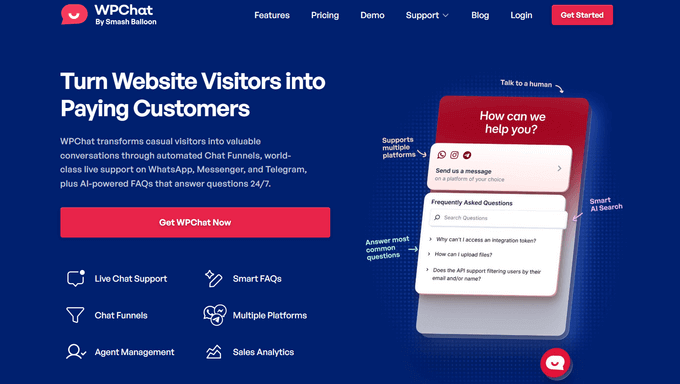
WPChat brings together WhatsApp, Facebook Messenger, Instagram, and Telegram chat into a single widget, so visitors can choose how they want to reach you.
I installed WPChat on my WordPress site, and it felt like plugging in a real, friendly salesperson. Visitors can click on the widget, connect with your business account directly on WhatsApp, and start chatting immediately.
We use WPChat in our business to offer quick customer support. For more information, don’t miss our complete WPChat review.
My Experience
The setup took only a few minutes. I added my WhatsApp number, customized the look and feel, and launched the widget on my site right away.
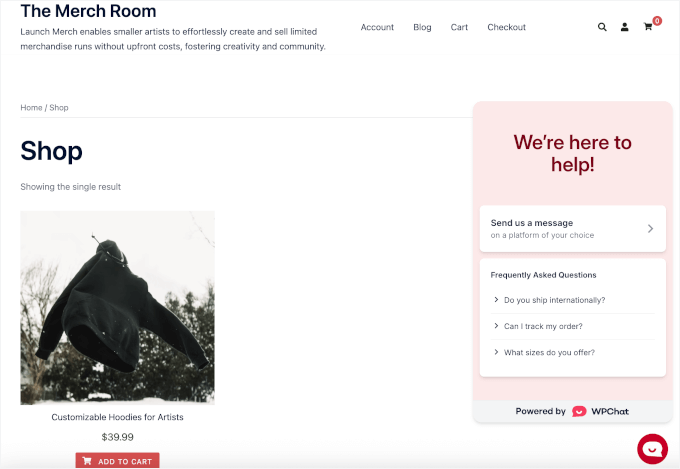
I also explored the multi-platform feature. I connected WhatsApp, Facebook Messenger, Instagram, and Telegram so visitors could choose their preferred channel.
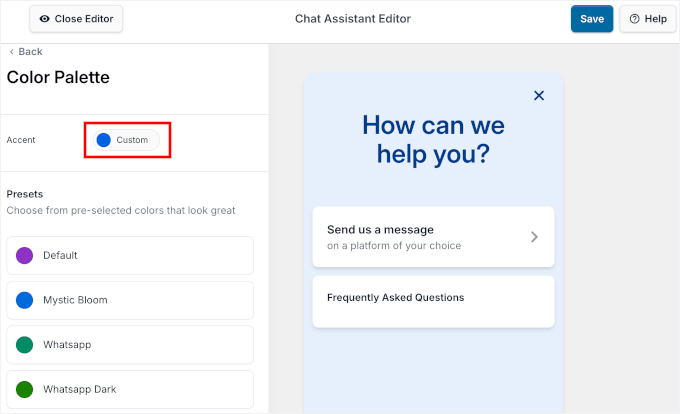
The customizable widget gave me full control over appearance. It was easy to adjust the color palette, select a chat icon that matched my brand, and choose an assistant avatar.
From there, I tested the FAQ feature by creating a set of common questions and answers inside the plugin.
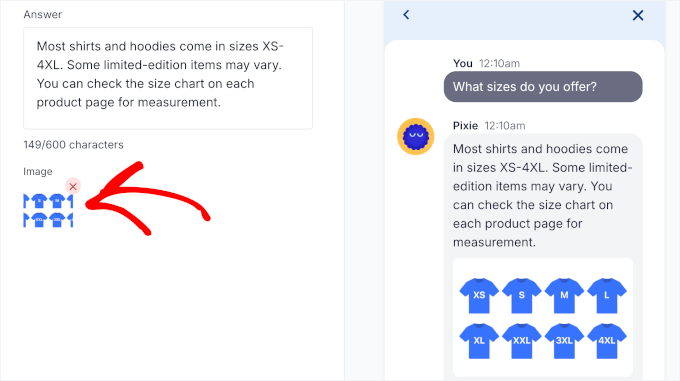
The setup was straightforward: I added a question, wrote a short answer, and used the live preview to see exactly how it would appear on the site. I also tested adding images to FAQs, which is helpful for explaining steps or showing visuals.
I also tried out the AI-powered Smart Search, which helps visitors find answers even if they don’t use the exact wording.
In practice, this felt like offering 24/7 support without needing a dedicated customer support team. (Though it’s worth noting that the AI search uses credits and falls back to basic keyword matching once those are used up.)
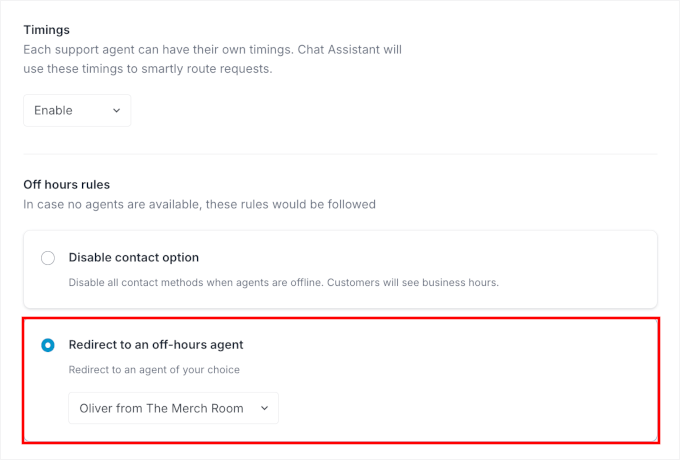
In addition, I set up multiple live support agents. The smart routing feature directed conversations based on availability and scheduling, so my team could share the same inbox without confusion.
The only downside I noticed was that advanced customization options require a paid plan. If you’re just getting started and want deeper control over design and routing, you’ll need to upgrade.
🌟 Why I Recommend WPChat: I really like that WPChat combines multi-platform chat with AI automation. You can scale customer support without overwhelming your team.
2. PushEngage – Best for Automated WhatsApp Notifications and Order Updates
| Pros of PushEngage | ✅ Automatically sends WhatsApp order updates and lifecycle messages after key customer actions. ✅ Real-time notifications build trust and improve customer satisfaction. ✅ Professional, template-based messages that feel consistent and trustworthy. ✅ Includes a free WhatsApp click-to-chat widget for real-time questions. |
| Cons of PushEngage | ❌ Personalization and workflows are limited on lower-tier plans. ❌ Great for automated order updates, but not ideal for flexible, conversational WhatsApp chat. |
| Pricing | Starts at $91/year (Free PushEngage plan available). |
| Best For | eCommerce store owners who want to automate WhatsApp order notifications. |
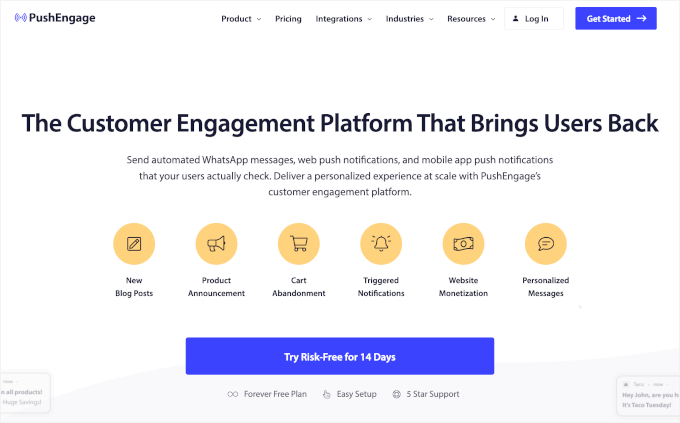
PushEngage is a multi-channel customer engagement platform that includes web push, app push, and WhatsApp messaging. For this roundup, I focused on its WhatsApp features for stores, which automatically send real-time order updates and recovery messages.
On my demo site, I set up automated WhatsApp messages that trigger when someone places an order. The result was amazing – customers received automatic updates like ‘Order placed’, ‘On hold’, and ‘Completed’.
We use PushEngage across our business to send push notifications to our readers. To learn more about the plugin, see our full PushEngage review.
My Experience
I connected PushEngage to WhatsApp via Meta’s Business API. The interface on the Meta website can be a bit overwhelming at first, but the setup itself only took me about 15 minutes.
Once connected, I enabled PushEngage’s prebuilt WhatsApp notification workflows for WooCommerce order statuses, including new orders, processing, completed, cancelled, and refunds.
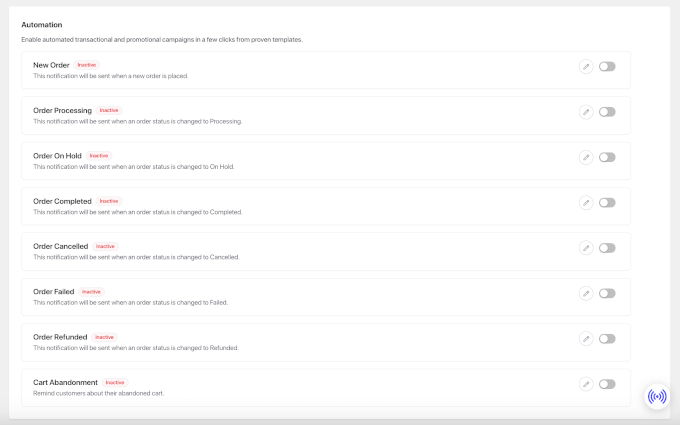
Each workflow triggered messages automatically whenever an order status changed, with no manual setup required. If you do want to make adjustments, you can also easily do that. You can tweak the notifications sent to customers, store admins, or both.
For details on how to do this, see our tutorial on how to send WooCommerce order notifications straight to WhatsApp.
The visual editor allowed me to fill out the admin phone number field, assign a message template, and insert dynamic order details using built-in variables. I could do these all through simple dropdowns, with no coding required.
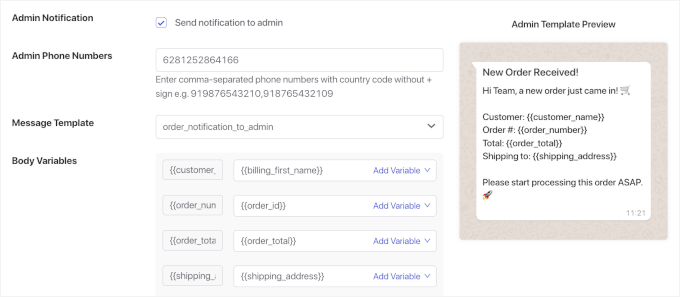
After that, I placed a few test orders and was especially impressed by how quickly the notifications were delivered.
In my tests, customers received order updates almost immediately, which made the checkout experience feel polished and reliable.
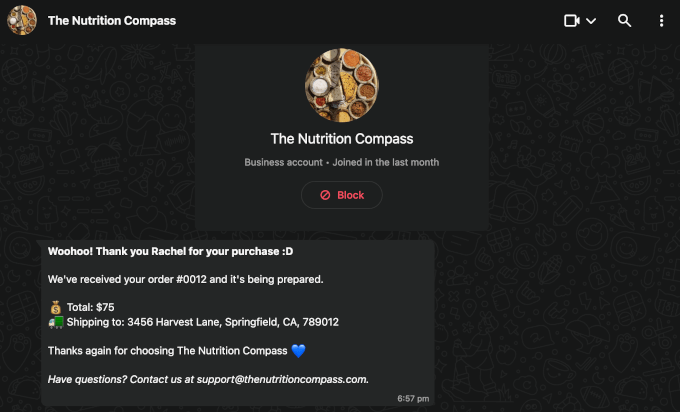
While I tested this setup with WooCommerce, PushEngage also supports other eCommerce platforms like Shopify, BigCommerce, OpenCart, and Magento. This makes it a flexible option for stores beyond WordPress.
Plus, PushEngage comes with a simple click-to-chat widget that allows customers to contact you directly on WhatsApp.
The main con is that setting up the automation workflows felt confusing at first. The interface has a learning curve, especially if you’re new to automation tools.
🌟 Why I Recommend PushEngage: PushEngage is a strong option for lifecycle messaging, especially order updates, cart recovery, and other store notifications. Your customers stay informed without any extra work from you.
3. Uncanny Automator – Best for Automating WhatsApp Messages

| Pros of Uncanny Automator | ✅ Builds powerful automations based on user actions. ✅ Uses the WhatsApp Cloud API directly so you only pay standard Meta messaging rates (no extra fees). ✅ Scales easily as your business grows. ✅ Connects with many popular WordPress plugins and tools. |
| Cons of Uncanny Automator | ❌ Creating the first few automation “recipes” can feel overwhelming. ❌ Advanced setups require some technical comfort. ❌ Ideal for complex workflows, but excessive if you only want a basic WhatsApp button. |
| Pricing | Starts at $149/year |
| Best For | Advanced users who want custom WhatsApp automation triggered by specific actions on their WordPress site. |
Uncanny Automator lets you create “recipes” that send WhatsApp messages automatically when users take specific actions on your site.
For example, using Uncanny Automator, I created recipes that send WhatsApp template messages when users complete a purchase or sign up on your website. Since it uses the Cloud API with no extra fees, I felt in control and could scale automations without spending too much money.
For more insights, see our full Uncanny Automator review.
My Experience
I first installed Uncanny Automator and connected it to WhatsApp via Meta’s Business API. Meta’s setup can take a moment to get used to, but the whole process took about 15 minutes.
Once connected, I created my first automation “recipe.” I set it up so that a new WooCommerce order would automatically trigger a WhatsApp notification.
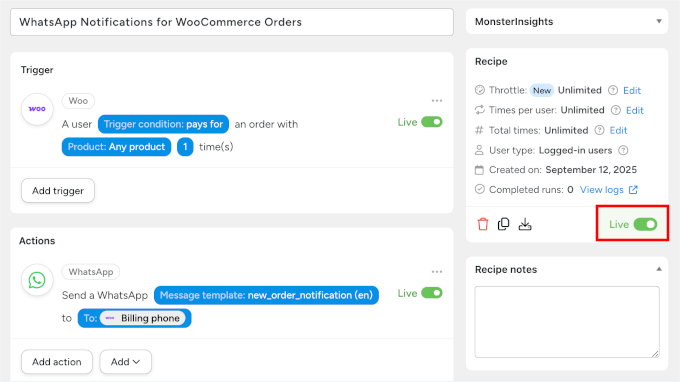
Beyond that, you can use Uncanny Automator for sending a welcome-message after a user registration or membership and course-related triggers.
For example, when someone enrolls in a course, completes it, or has a subscription nearing expiration, you can use Uncanny Automator to send automated WhatsApp notifications. Plus, it works smoothly with popular LMS plugins like MemberPress and LearnDash.
Then, you can monitor all automation activity in the Logs tab, where you’ll see when recipes run and whether they succeed or fail.
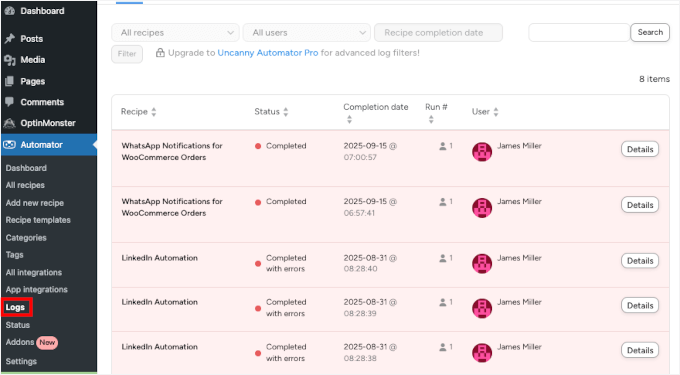
What stood out most was how easy it is to scale. I could add more recipes and automations as my site grew, all from a visual, drag-and-drop interface.
The biggest challenge I faced was that creating my first few recipes felt overwhelming. If you’re new to automation, understanding triggers and actions can take time.
To get started, you can see our guide on how to create automated workflows with Uncanny Automator.
🌟 Why I Recommend Uncanny Automator: Uncanny Automator is ideal for sending WhatsApp messages in response to real activity on your site, such as orders, form submissions, or user actions. All without building custom integrations.
4. WPForms – Best for Sending WhatsApp Notifications from Form Entries
| Pros of WPForms | ✅ Beginner-friendly with an AI-form builder and 2000+ form templates. ✅ Can send WhatsApp messages via Twilio when a form is submitted. ✅ Integrates well with popular email marketing tools. ✅ Built-in spam protection reduces junk entries. |
| Cons of WPForms | ❌ Styling is somewhat limited unless you add custom CSS. ❌ Conditional logic is only included in higher-tier plans. ❌ Too form-focused if you’re looking for a full chat or messaging solution. |
| Pricing | Starts at $49.50/year (Free WPForms plan available). |
| Best For | Business owners who want instant WhatsApp notifications whenever someone submits a form on their WordPress site. |
WPForms is the best and most beginner-friendly contact form plugin that automatically sends WhatsApp notifications when someone submits a form.
I paired it with the Twilio addon to automatically send WhatsApp notifications. This worked great for welcoming new customers to a rewards program or sending coupons and special offers.
We use WPForms across our business for our contact forms, surveys, and more. For details, you can refer to our extensive WPForms review.
My Experience
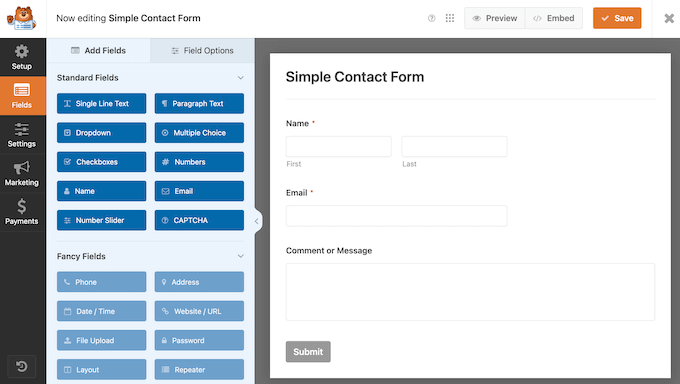
During testing, I first created a simple contact form using the WPForms drag-and-drop builder.
From there, I explored WPForms’ AI form builder and its built-in form templates. There are more than 2,000 ready-made options for contact forms, surveys, and lead generation, which saves time when creating different types of forms.
The interface was intuitive, and I had a working form ready in just a few minutes.
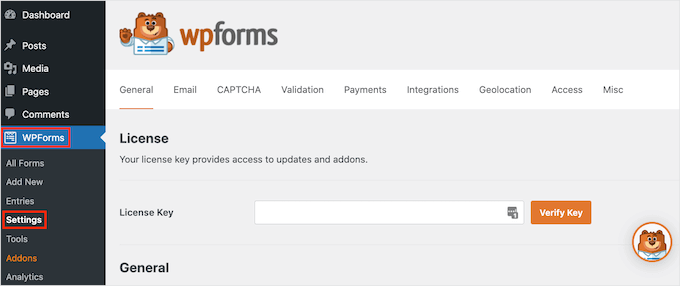
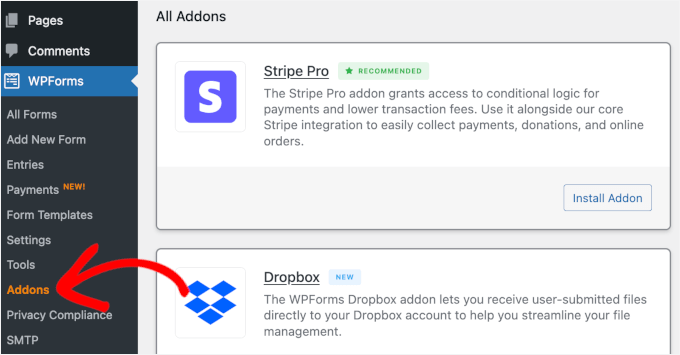
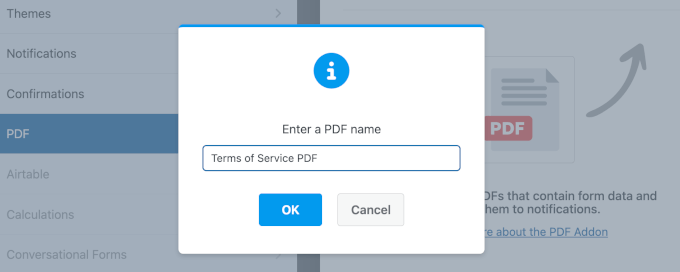
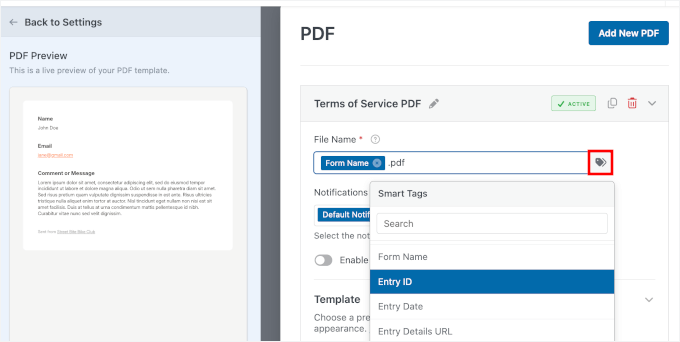
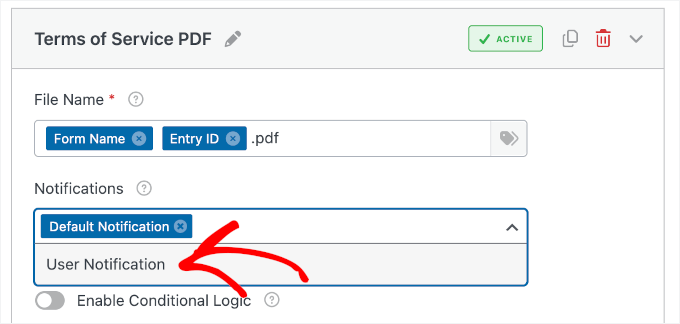
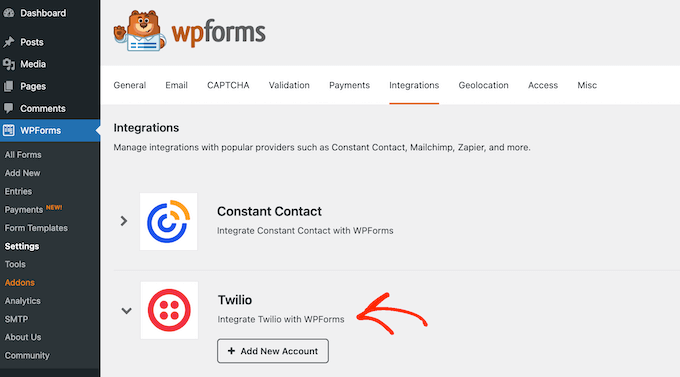
Once the form was set up, I connected the Twilio addon.
This integration lets you send WhatsApp messages using pre-approved message templates created in Twilio, rather than free-form messages. Note that you will need your own Twilio account if you wish to do the same.
To test everything, I submitted the form using my own phone number. Within seconds, I received a WhatsApp notification containing the form details, which felt fast, reliable, and professional.
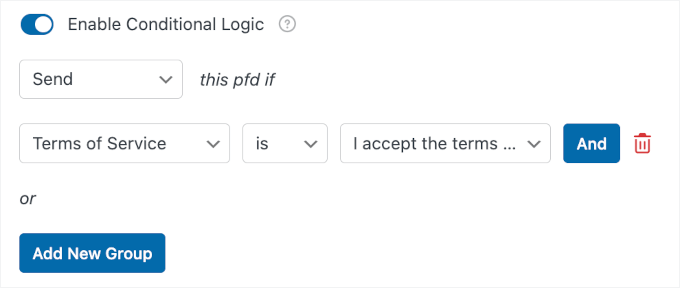
Beyond WhatsApp notifications, I also tested conditional logic. This smart feature lets you show or hide fields based on user responses, making the forms feel more relevant to each visitor.
I also tried out the email marketing integrations. Connections with platforms like Constant Contact worked smoothly and automatically added form submissions to my mailing lists.
Plus, WPForms’ built-in spam protection did a good job of blocking junk submissions, so I didn’t need extra plugins or manual cleanup.
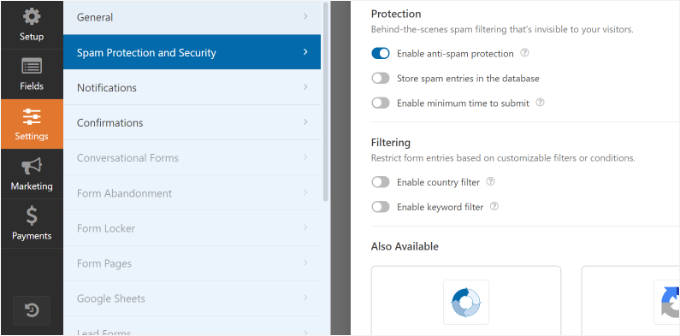
The main limitation I noticed was the lack of design flexibility. While the form builder is easy to use, more advanced styling still requires custom CSS for full visual control.
🌟 Why I Recommend WPForms: This contact form plugin makes automating user communication straightforward. Once you’ve connected WPForms with Twilio, your form submissions can trigger instant WhatsApp alerts using pre-approved templates.
5. Tidio – Best for a Multi-Channel Support Suite
| Pros of Tidio | ✅ Combines live chat, chatbots, email, and WhatsApp in one shared inbox. ✅ Visual flow builder makes it easy to create automated replies and FAQs. ✅ Strong eCommerce integrations for cart recovery and lead generation. |
| Cons of Tidio | ❌ More complex to set up than a simple “click to WhatsApp” button. ❌ Costs increase as you add conversations, agents, or advanced tools. ❌ Best if you need a full support platform with WhatsApp as one channel, but overkill if you only want a basic WhatsApp button. |
| Pricing | Starts at $24.17/month |
| Best For | Teams managing multi-channel customer support, with WhatsApp included as part of the unified system, for a shared inbox with clear conversation assignments. |
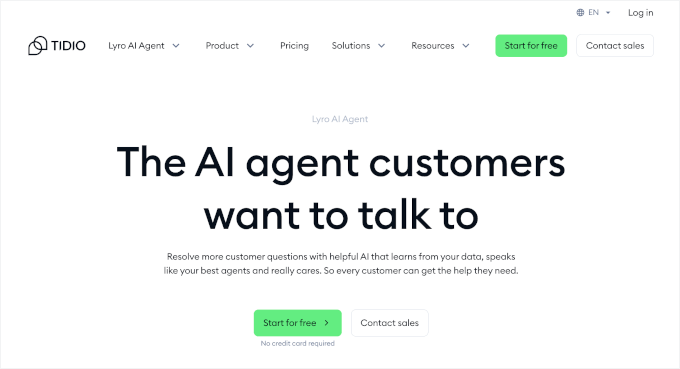
Tidio allows you to add WhatsApp messaging to a complete customer support system. It brings live chat, email, and WhatsApp conversations into one shared inbox.
I connected my site’s live chat and chatbot to WhatsApp so that conversations all flowed into one place. I could build visual chatbot flows that answered FAQs on my website and then handed off the conversation to WhatsApp when needed.
My Experience
Once I installed Tidio, I immediately found that the unified inbox makes it much easier to manage conversations. Live chat, email marketing services, and WhatsApp messages all appeared in one dashboard.
When setting up the WhatsApp integration, Tidio let me assign an agent, upload a profile picture, and change the chatbox color palette.
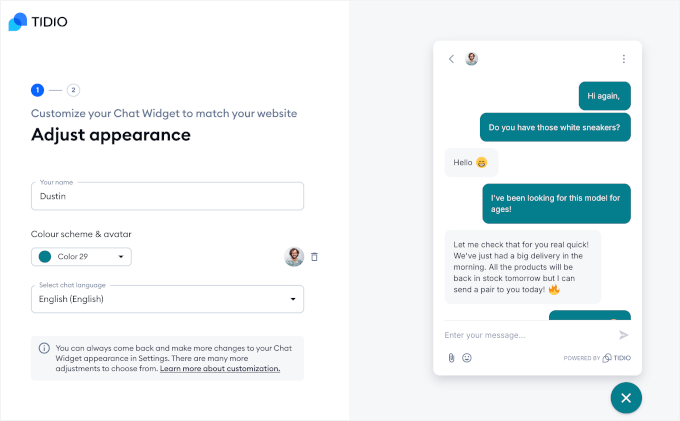
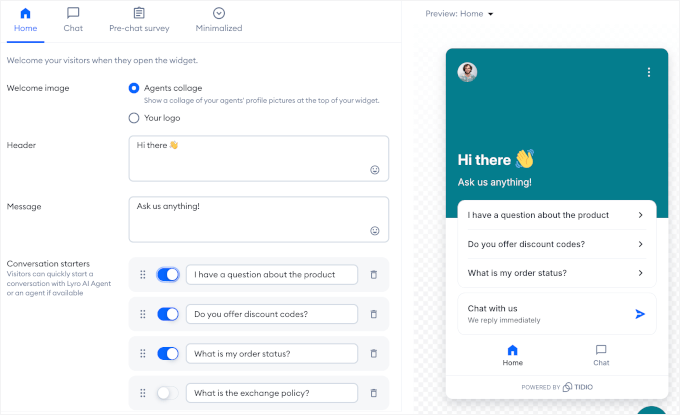
Then I used Tidio’s visual editor to fine-tune the chat. I set up conversation starters to answer common questions about products, discounts, and shipping, then guide visitors to a live agent if needed.
You can also adjust other settings, like:
- Offline mode: Write a message to let users know you’re offline and reroute them to email tickets.
- Pre-chat surveys: Collect info to grow your email list.
- Minimized chat button: Control how the button looks when minimized, with or without labels.
You can switch between tabs to configure these settings.
In addition, Tidio comes with visitor tracking, which shows which pages visitors are viewing and how long they’ve been on the site. This helped me know when to reach out proactively.
The main challenge I found was that the setup felt more complex than a simple WhatsApp button. If you only need basic click-to-chat functionality, Tidio might feel like overkill.
🌟 Why I Recommend Tidio: Tidio unifies all customer conversations beautifully. You can manage everything from one place without switching tools.
6. Buttonizer – Flexible WhatsApp Floating Action Button
| Pros of Buttonizer | ✅ High level of design control so your chat button matches your brand. ✅ Drag-and-drop interface makes customization straightforward. ✅ Wide selection of button designs and templates. ✅ Customize welcome messages, colors, backgrounds, and agent details. |
| Cons of Buttonizer | ❌ Customization options can feel overwhelming for beginners. ❌ Some advanced design features are locked behind higher-tier plans. ❌ Great if branding is a priority, but may feel too complex if you just want a simple, ready-made chat widget. |
| Pricing | Starts at $10/month (Free plan available). |
| Best For | Businesses that want full visual and branding control over their WhatsApp chat button. |
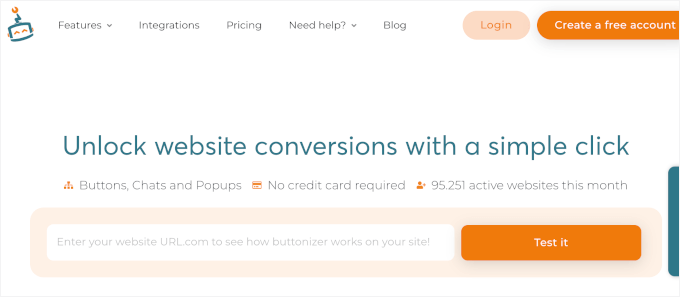
Buttonizer gives you the freedom to design a WhatsApp chat button that perfectly matches your brand. With over 40 chat buttons and pre-made templates, you can experiment with different designs until it looks right.
For more information, see our complete Buttonizer review.
My Experience
Once I chose a design, I used the drag-and-drop interface to position the button exactly where I wanted it. Then, I could easily adjust its size and appearance without writing any code.
Next, I personalized the agent information by adding a name, avatar, and a friendly welcome message. I also matched the chat colors to my brand and added a custom background image for extra flair.

When I tested it on mobile, the button remained responsive and easy to tap. The placement options ensured it didn’t interfere with navigation or other site elements.
Beyond WhatsApp, Buttonizer supports Facebook Messenger, Slack, Telegram, and other platforms, so you can offer visitors multiple ways to reach your support team.
The biggest challenge I faced was feeling overwhelmed by all of the customization options. For beginners, the number of choices can make the setup process a bit confusing at first.
🌟 Why I Recommend Buttonizer: Buttonizer gives you total branding control, and your WhatsApp chat button looks exactly how you want it.
7. JoinChat – Best for a Simple, Analytics-Friendly WhatsApp Button

| Pros of JoinChat | ✅ Clean floating WhatsApp button that feels helpful, not intrusive. ✅ Quick setup with a conversational wizard. ✅ Google Analytics integration to track chat clicks. ✅ Supports images, videos, GIFs, multiple languages, and RTL. ✅ Offers theme colors and dark mode to match your site. |
| Cons of JoinChat | ❌ Design customization is more limited than other plugins. ❌ Some advanced triggers require technical skills. ❌ Not ideal if you need detailed design control or flashy effects. |
| Pricing | Starts at €96/year |
| Best For | Site owners who want a clean WhatsApp button with built-in analytics for tracking engagement. |
JoinChat provides a simple, floating WhatsApp button that doesn’t feel intrusive but still invites conversation. The setup wizard made it fast to go live, and I appreciated that I could set up triggers and track events in Google Analytics.
My Experience
When I tried JoinChat, I liked their setup wizard. It walked me through the basic configuration in minutes using a friendly, conversational format – just like chatting with an assistant.
After connecting it with my WhatsApp number, I could pick the chat button icon, write a call-to-action (CTA) using placeholders like {SITE} to automatically insert my site name, and add a tooltip that appears when users hover over the button.
I also explored the theme colors and dark mode to improve visibility for visitors.
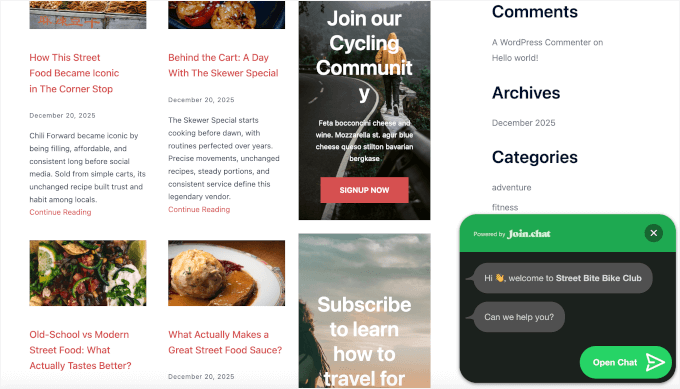
The feature I liked the most was being able to control when the button shows up.
You can trigger it after someone scrolls for 10 seconds or browses a couple of pages. This way, the chat reaches visitors when they’re more likely to engage, rather than distracting them too early.
I also liked that I could connect it to Google Analytics to track how many visitors clicked the WhatsApp button.
Additionally, you can link other messaging tools like Telegram, Skype, and FaceTime, and show a QR code for each channel for easy access.
One downside was that the design customization felt more limited than that of other plugins. If you want advanced button effects or animations, then JoinChat won’t deliver that level of control.
🌟 Why I Recommend JoinChat: With JoinChat, you get a sleek chat design plus useful analytics that let you track engagement effortlessly.
💡 Note: If you’re overwhelmed with the Google Analytics interface, consider MonsterInsights. It’s the best analytics plugin that brings your GA reports directly into your WordPress dashboard, in a clear, easy-to-read format.
See our complete MonsterInsights review for more information!
8. Simple Chat Button – Best Lightweight and Free WhatsApp Chat Button
| Pros of Simple Chat Button | ✅ Very lightweight, so it won’t slow down your site. ✅ Extremely easy to use, even for beginners. ✅ Ideal if you only need a clean, minimal WhatsApp button. ✅ Offers simple, no-fuss customization. |
| Cons of Simple Chat Button | ❌ Very limited features compared to other plugins. ❌ No automation, analytics, or deeper customization options. |
| Pricing | Free on WordPress.org |
| Best For | Bloggers and small site owners who want a free, minimal WhatsApp button that won’t affect site speed. |
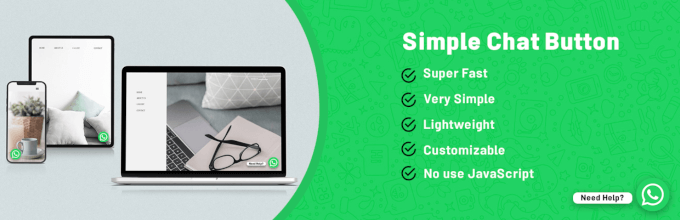
Simple Chat Button is lightweight to set up, making it perfect for anyone minimal chat option that doesn’t slow things down. It’s exactly what its name promises: a straightforward WhatsApp button without unnecessary features or bloat.
My Experience
I installed Simple Chat Button from the WordPress repository within seconds. The plugin file was tiny, which immediately told me it wouldn’t affect my site’s performance.
Once activated, the setup was incredibly simple. I entered my WhatsApp number, chose a button position, and set up the button CTA. With just these settings, I had the chat button up and running on my test site.

With Simple Chat Button, you have three link actions to choose from when a user clicks the chat button:
- Direct Link (API) – Opens the WhatsApp page with options to open the app, continue to WhatsApp Web, or sign up for WhatsApp.
- WhatsApp Web – Opens WhatsApp Web (users will need to link their devices).
- Desktop App – Attempts to open the WhatsApp software on the user’s computer (users must have it installed).
You can also choose whether the link opens in the current tab or a new tab.
It’s compatible with most WordPress themes and essential plugins, meaning that it displayed correctly on my testing site without any conflicts.
The biggest drawback I found was the very limited feature set. There’s no automation, no analytics tracking, and no advanced customization – just a simple button that opens a WhatsApp chat with your number.
🌟 Why I Recommend Simple Chat Button: I recommend Simple Chat Button because it’s lightweight, free, and does exactly what you need – adds a simple WhatsApp chat button to your website.
Alternatives: Other WordPress WhatsApp Plugins I Tested
Beyond the main tools I’ve covered, I also checked out a few alternatives. Here’s a quick look at how they performed:
 |
🟢 The Good: Simple “click to WhatsApp” button that’s easy to add and customize. 🔴 The Bad: Focuses mainly on basic click‑through chat, so you don’t get deeper automation or analytics. ⭐ Best For: Site owners who want a straightforward, no‑frills WhatsApp button. |
 |
🟢 The Good: Multi‑channel floating widget that lets you add WhatsApp alongside other popular chat and social media apps. 🔴 The Bad: Interface and options can feel busy if you only want WhatsApp. ⭐ Best For: Businesses that want one central widget to house WhatsApp plus multiple contact channels. |
WhatsApp Order and Live Chat for WooCommerce
 |
🟢 The Good: Tailored to WooCommerce, making it easy for shoppers to ask product or order questions directly on WhatsApp. 🔴 The Bad: Very eCommerce‑focused, so it’s less useful for general websites. ⭐ Best For: WooCommerce stores that want to handle pre‑sales and order‑related chats through WhatsApp. |
 |
🟢 The Good: Offers a customizable WhatsApp chat box with options like agent details and availability. 🔴 The Bad: Interface and feature depth can feel a bit much if you just need a basic floating icon. ⭐ Best For: Businesses that want a more “app‑like” WhatsApp chat experience with multiple agents and branding. |
🔗 More Alternatives: I also tried out Cresta Help Chat, Social Chat by QuadLayers, and GetButton (Formerly WhatsHelp), but I didn’t include them in this review to avoid choice paralysis.
What Is the Best WhatsApp Plugin for WordPress?
Overall, WPChat is the best WhatsApp plugin for most users. It combines multi-platform support with AI-powered automation, so you can handle customer conversations efficiently without hiring a large support team.
If you run an eCommerce store and need automated order notifications, then PushEngage is ideal. For advanced users who want deep automation workflows, Uncanny Automator offers powerful recipe-based triggers that scale with your business.
To get started quickly, I recommend installing the free WPChat plugin and adding a professional chat widget to your WordPress site. Once your business grows, you can upgrade to the paid plan.
FAQs About Using WhatsApp Plugins for WordPress
Before we wrap up, here are some quick answers to common questions people ask when setting up WhatsApp on their WordPress sites.
Can I use WhatsApp Business with my WordPress site?
Yes, most WhatsApp plugins let you connect your WhatsApp Business number. For simple click-to-chat buttons, all you need is your business phone number.
If you’re using more advanced features (like automation or notifications), you may need the WhatsApp Business API, which works alongside your WhatsApp Business account.
Is there a WhatsApp plugin for WordPress?
Definitely. There are dozens of WhatsApp plugins, ranging from super simple chat buttons to full customer support tools with automation, analytics, and team inbox features. The “best” one depends on whether you want something basic or a more powerful setup.
What’s the difference between WhatsApp and the WhatsApp API?
WhatsApp is the regular app you use on your phone, perfect for simple, one-to-one chats. The WhatsApp API is a more advanced, business-focused version. With it, you can send automated notifications, connect to WordPress plugins, and manage conversations at scale.
Is WhatsApp API free? Do I need it to connect WhatsApp with WordPress?
The standard WhatsApp Business app is free.
But the WhatsApp Cloud API (which is required for automation features in plugins like PushEngage or Uncanny Automator) isn’t completely free. Meta charges fees for delivered template messages on the WhatsApp Business Platform, and rates vary by message type and region.
Next Steps to Improve Customer Communication in WordPress
I hope this guide has helped you find the best WhatsApp plugin for your project.
If you’re looking to improve customer communication on your WordPress site, here are more guides to help you out:
- How to Create a Contact Form in WordPress
- How to Create a Click-to-Call Button in WordPress
- How to Add WhatsApp Share Buttons in WordPress
- How to Add Web Push Notifications in WordPress
- Best WordPress CRM Plugins for Small Business
If you liked this article, then please subscribe to our YouTube Channel for WordPress video tutorials. You can also find us on Twitter and Facebook.
The post 8 Best WhatsApp Plugins for WordPress (I Tested Them All) first appeared on WPBeginner.